Notifications
Sable includes several improvements to notifications over the Cinny base it was forked from.
Privacy-First Push Notifications
When push notifications are enabled, Sable uses the event_id_only pusher format. This means your homeserver sends only the room ID and event ID to the push gateway (Sygnal) — no message content, sender name, or room name leaves your server unencrypted.
The service worker fetches the event details directly from your homeserver using your stored session, so the full notification (including sender name, room name, and message body) is assembled on your device rather than handled by a third party.
Encrypted Rooms
For end-to-end encrypted rooms, the service worker relays the encrypted event to an open Sable tab for decryption. If the app is currently visible, the OS notification is suppressed — you won't get a double alert.
Note: On iOS, encrypted message content in push notifications may work depending on the situation. When using a PWA, it will only work while the app is still running in the background — iOS aggressively suspends PWA processes, so if the PWA has been fully killed, encrypted content cannot be decrypted and the notification will show "Encrypted message" as the body. In a native browser (Safari), behaviour depends on whether a background tab is available. This is a platform limitation, not a Sable bug.
Using Your Own ntfy Server (Android)
Android can receive push notifications through an ntfy server you run, either with the built-in connection or with the ntfy app.
Built-in Connection
In Settings → Notifications → Notification transport, choose Built-in (WebSocket) and enter your server in ntfy server, e.g. https://ntfy.example.org. Leave it blank to use the server your Sable deployment ships with. The setting only applies to the current device.
ntfy App
Set your server as the default in the ntfy app, then choose UnifiedPush in Settings → Notifications → Notification transport and pick ntfy as the distributor.
Server Access
If your server uses auth-default-access: deny-all, allow anonymous access to the UnifiedPush topics (up*). The built-in connection subscribes without an account, so it needs read and write access:
ntfy access '*' 'up*' read-writeWith the ntfy app signed in to your server, write-only is enough.
Notification Avatars
Push notifications now show the room avatar (or the sender's avatar for DMs) instead of always falling back to the Sable app logo.
DM Sidebar Avatars
When you have unread direct messages, the avatars of those contacts appear directly in the sidebar — up to three at a time, sorted by most recently active. Click an avatar to go straight to that DM.
The main DM icon in the sidebar only counts DMs that overflow beyond those three sidebar entries, so you won't see the same unread counted twice.
Reaction Notifications
Reactions to your messages now generate notifications. The notification preview shows the emoji that was used, e.g. "Reacted with 👍".
Encrypted Event Notifications
In-app notification banners and desktop notifications are now triggered correctly for messages in encrypted rooms, including when the app resumes from a background state.
Notification Settings Reference
Sable's notification behaviour is controlled by a combination of per-room settings and global toggles in Settings → Notifications.
Per-Room Notification Level
Each room can be set to one of three notification levels:
| Level | Unread badge | Push notification | In-app banner |
|---|---|---|---|
| All messages | Every unread message | Every message | Every message |
| Mentions & keywords | Mentions/keywords only | Mentions/keywords only | Mentions/keywords only |
| Mute | None | None | None |
The default for most rooms is Mentions & keywords. Direct messages default to All messages.
Badge Toggles
The Badges section in Settings → Notifications controls how unread counts appear in the sidebar. By default, DMs and mentions show a number count while rooms and spaces show a plain dot — the toggles below let you customise this.
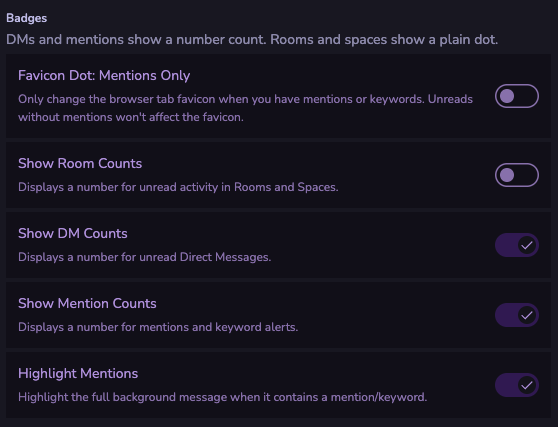
| Toggle | Default | What it does |
|---|---|---|
| Favicon Dot: Mentions Only | Off | When on, the browser tab favicon only changes for mentions or keyword alerts. Unreads in rooms set to "All messages" won't affect the favicon. |
| Show Room Counts | Off | When on, rooms and spaces show a number badge for total unread messages rather than a plain dot. |
| Show DM Counts | On | Shows a number badge on the DM section for unread direct messages. Turn off to show a plain dot instead. |
| Show Mention Counts | On | Shows a number badge for mentions and keyword alerts. Turn off to show a plain dot for those too. |
| Highlight Mentions | On | Highlights the full message background when a message contains a mention or keyword, making it easier to spot at a glance. |
Example combinations:
- Default (Room Counts off, DM Counts on, Mention Counts on): DMs and mentions show a number, rooms show a plain dot — keeps the sidebar uncluttered while still surfacing important counts.
- All counts on: Every section of the sidebar shows a number badge, giving you a precise overview at all times.
- Favicon Dot: Mentions Only on: The browser tab icon only reacts to direct mentions, ignoring general unread activity — useful if you keep Sable open in a background tab and don't want constant favicon changes.
How Notifications Are Delivered
- Push notifications (app closed / backgrounded): requires push to be enabled in Settings → Notifications. Follows per-room level.
- In-app banners (app is open): shown in the top-right corner of the app. Also follows per-room level.
- Unread badges (sidebar): controlled by the badge toggles above and per-room notification level.
- DM sidebar avatars: contact avatars appear in the sidebar for unread DMs — see DM Sidebar Avatars above.