Settings Sync
Sable can keep your app settings in sync across all your devices automatically.
How It Works
When enabled, your settings are stored in a Matrix account data event (moe.sable.app.settings) on your homeserver. Changes you make on one device propagate to your other sessions within a few seconds — no manual export/import needed.
Enabling Settings Sync
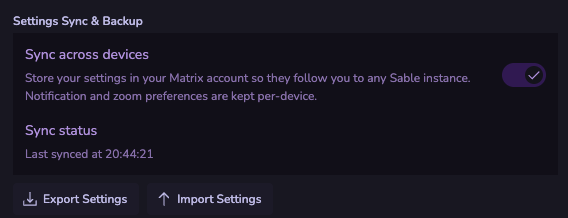
Go to Settings → General and turn on Sync settings across devices.
Once enabled, any setting change you make is uploaded to your homeserver after a short delay. When you open Sable on another device, it pulls the latest settings from your account data and applies them automatically.
Manual Backup and Restore
The same settings section includes a JSON export/import area. You can:
- Export your current settings to a
.jsonfile as a backup - Import a previously exported settings file to restore preferences
This is useful for self-hosted instances where account data sync may not be available, or to migrate settings to a completely different account.
Note: Settings sync is opt-in. If you don't enable it, your settings remain local to each device as before.